🧠
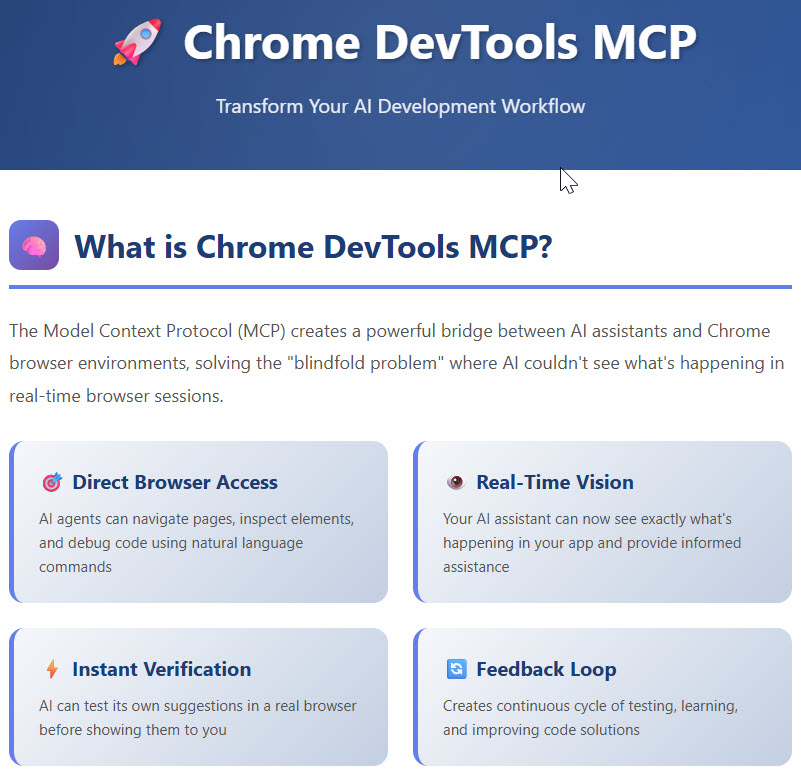
What is Chrome DevTools MCP?
The Model Context Protocol (MCP) creates a powerful bridge between AI assistants and Chrome browser environments, solving the "blindfold problem" where AI couldn't see what's happening in real-time browser sessions.
🎯 Direct Browser Access
AI agents can navigate pages, inspect elements, and debug code using natural language commands
👁️ Real-Time Vision
Your AI assistant can now see exactly what's happening in your app and provide informed assistance
⚡ Instant Verification
AI can test its own suggestions in a real browser before showing them to you
🔄 Feedback Loop
Creates continuous cycle of testing, learning, and improving code solutions
✨
Key Benefits
Automate Debugging
Use natural language commands for repetitive tasks
DOM Manipulation
Inspect and modify page elements directly
Performance Audit
AI-assisted analysis of app performance
Reduce Context-Switching
No more toggling between IDE and browser
Accurate Suggestions
Based on real-time page state
Visual Testing
Capture screenshots and analyze layouts
🛠️
Quick Setup Guide
Install MCP Server
Use npm to install the Chrome DevTools MCP server globally on your system
npm install -g @chrome-devtools/mcp-server
Start the Server
Launch the MCP server to get your WebSocket connection URL
chrome-devtools-mcp
Returns: ws://localhost:9222/mcp
Connect Your AI Assistant
Configure your AI coding tool (Claude Desktop, Cursor, Cline, VSCode) with the WebSocket URL
Test the Connection
Ask your AI assistant to perform a simple browser task like navigating to a website or taking a screenshot
🔄
The Transformation
❌ Before MCP
- AI was "blind" to browser behavior
- Manual verification of every suggestion
- Constant context-switching
- Guesswork-based solutions
- Hours spent on repetitive debugging
✅ With MCP
- AI sees real-time browser state
- Automatic solution verification
- Seamless workflow integration
- Context-aware debugging
- Minutes to resolve complex issues
🤖
Compatible AI Assistants
Claude Desktop
Full MCP integration with detailed permission controls and extensive logging
Cursor
Smooth editor-to-browser debugging workflow with tight integration
Cline
Terminal-based AI assistant with Chrome DevTools capabilities
VSCode Extensions
Plugin-based integration with customizable AI models
📈
Impact Metrics
💡
Top Use Cases
🐛 Automated Bug Detection
AI identifies JavaScript errors, traces execution paths, and suggests fixes without manual intervention
📱 Responsive Design Testing
Test different viewports, identify layout issues, and get exact CSS solutions
⚡ Performance Optimization
AI-assisted analysis of load times, resource usage, and rendering performance
♿ Accessibility Audits
Automated compliance checking and recommendations for WCAG standards
🧩 Framework Debugging
Deep inspection of React, Angular, Vue component hierarchies and state
🌐 Network Analysis
Monitor API calls, analyze response times, and identify bottlenecks
✔️
Requirements
- ✅ Chrome Browser (version 115 or later)
- ✅ Node.js (version 18 or later)
- ✅ MCP-compatible AI Assistant
- ✅ Basic command line knowledge
🚀 Start transforming your development workflow today with Chrome DevTools MCP
Learn more at Press Release Cloud